
Exploring AI tools for VFX: MidJourney vs. Adobe Firefly and how to combine their strengths for digital matte painting.
I have been playing with AI-generated imagery ever since it’s been publicly available and found it pretty useful for generating ideas. However, I’ve yet to use it in VFX shot work, professional or otherwise. So this week, I’ve been dipping my toes into that water.
My starting point is this:
1. If AI is a tool rather than a replacement, I should be able to direct it.
2. AI is an absolute bitch to direct. (AI artists will disagree with me on that and point out that good prompting skills and many iterations will help direct, but I still find it infuriating and creatively limiting because of it.)
3. With that in mind, how can I work with it so that I feel like a chef, rather than a diner ordering food and hoping it’s delicious?
App Recommendations:
I’m going to suggest two different apps this week, followed by a third next week. For now, I want to focus on MidJourney and Adobe Firefly as I’ve been experimenting with combining them.
MidJourney:
Pros: Trained on a huge data set, so it works well with photorealism.
Cons: Limited options for editing, data set was scraped/stolen.
Adobe Firefly:
Pros: Trained on licensed Adobe images, integrated into Photoshop with options for immediate editing.
Cons: Smaller data set, which generally means lower quality results. Also, Adobe’s new terms of service indicate that it does intend to steal artists’ work for future training.
Experiment in Combining Strengths:
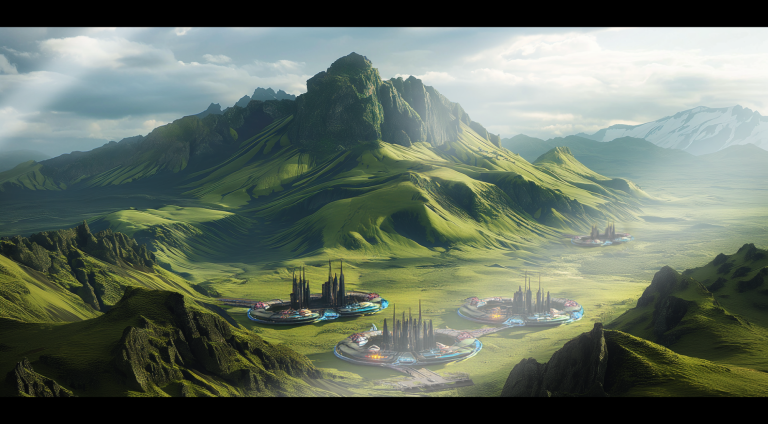
As an experiment in combining the strengths of these two packages, I decided to create a concept for digital matte painting using MidJourney and then edit it in Firefly.
I think matte painting and set extension is where AI imagery could be a game changer for the obvious reason that it’s painting-based!
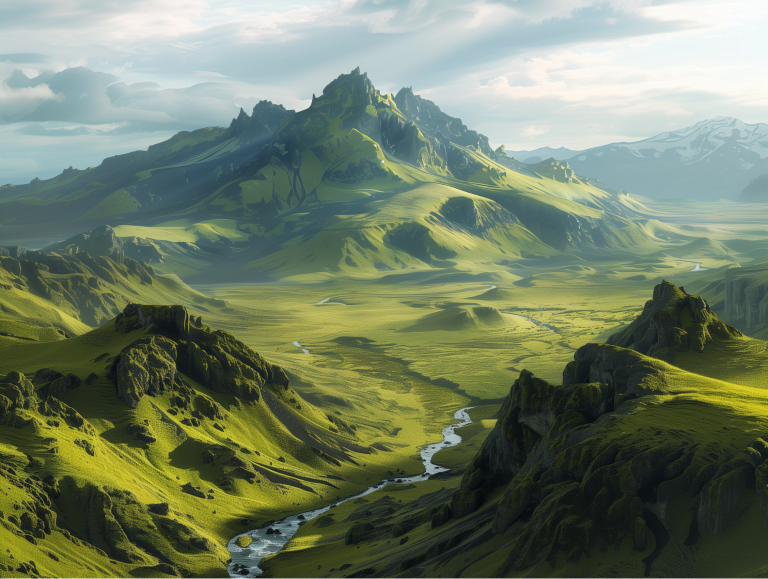
Step 1 -
Generate landscape in Midjourney (obviously this could be a photo or a still from filmed footage if you wanted)
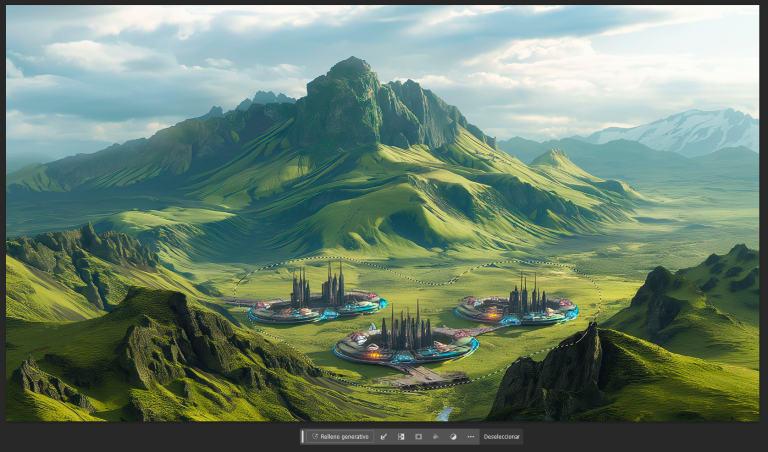
Step 2 -
Bring into Photoshop. Select area to edit, and use Firefly’s “Generative Fill” to edit (In this case the prompt was simple “A fun sci-fi city”.
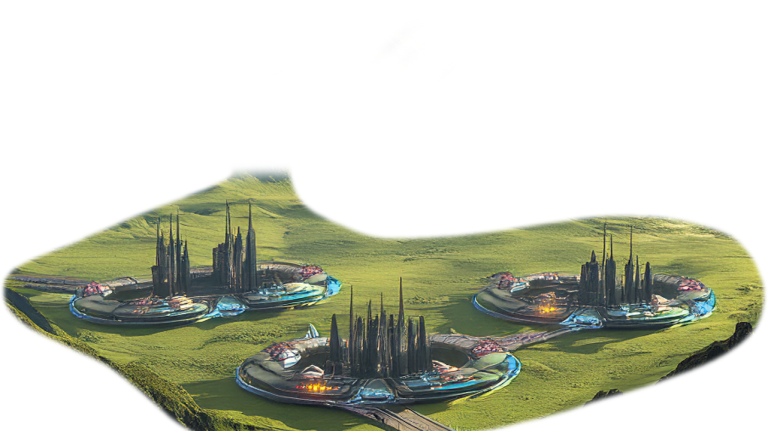
Step 3 (optional) -
Firefly doesn’t just add the elements you want, it beds them in. So in this case, the Firefly generated footage is the city and the greenery around it. Since we’re in Photoshop, you can use the “Select Subject” option to remove the extra elements
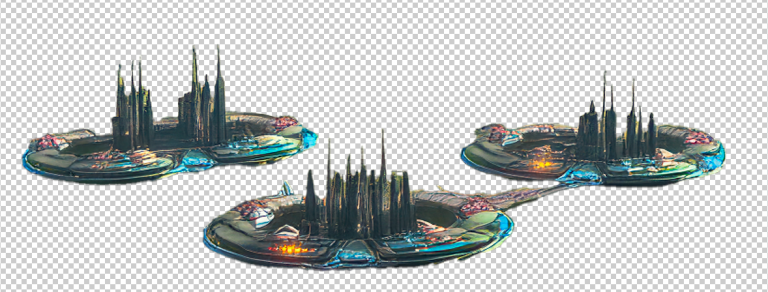
Step 4 -
Be a human and do some stuff! In this case I just desaturated, pushed the contrast, added a vignette and God rays. I copy/pasted a section of the city to the mid ground to balance out the composition a bit.
As always, I’d love to see what you guys are doing, so if you’re experimenting with AI based imagery, let me know by replying to this email or join the platform and connect on discord.
Next week, we’ll involve some 3D into the mix, using Stable Diffusion and Blender
God speed,
Chris