As we release this week’s edited live Follow Along Workshop on “AI Inpainting”, and an updated latest-and-greatest inpainting template, I thought I’d set some time aside to outline what I think are the main considerations when planning and running shots with AI edits.
During the live session, we discussed a bunch of situations where you can make life easier by planning a shot rather than “fixing it in post” (which over time will inevitably become “fix it with AI”, and it will still be a stupid approach…)
So this is my “AI Pipeline Cheat Sheet”, outlining your primary considerations if you’re considering using AI in a VFX capacity (as opposed to generating full shots for B-roll, cutaways, etc.)
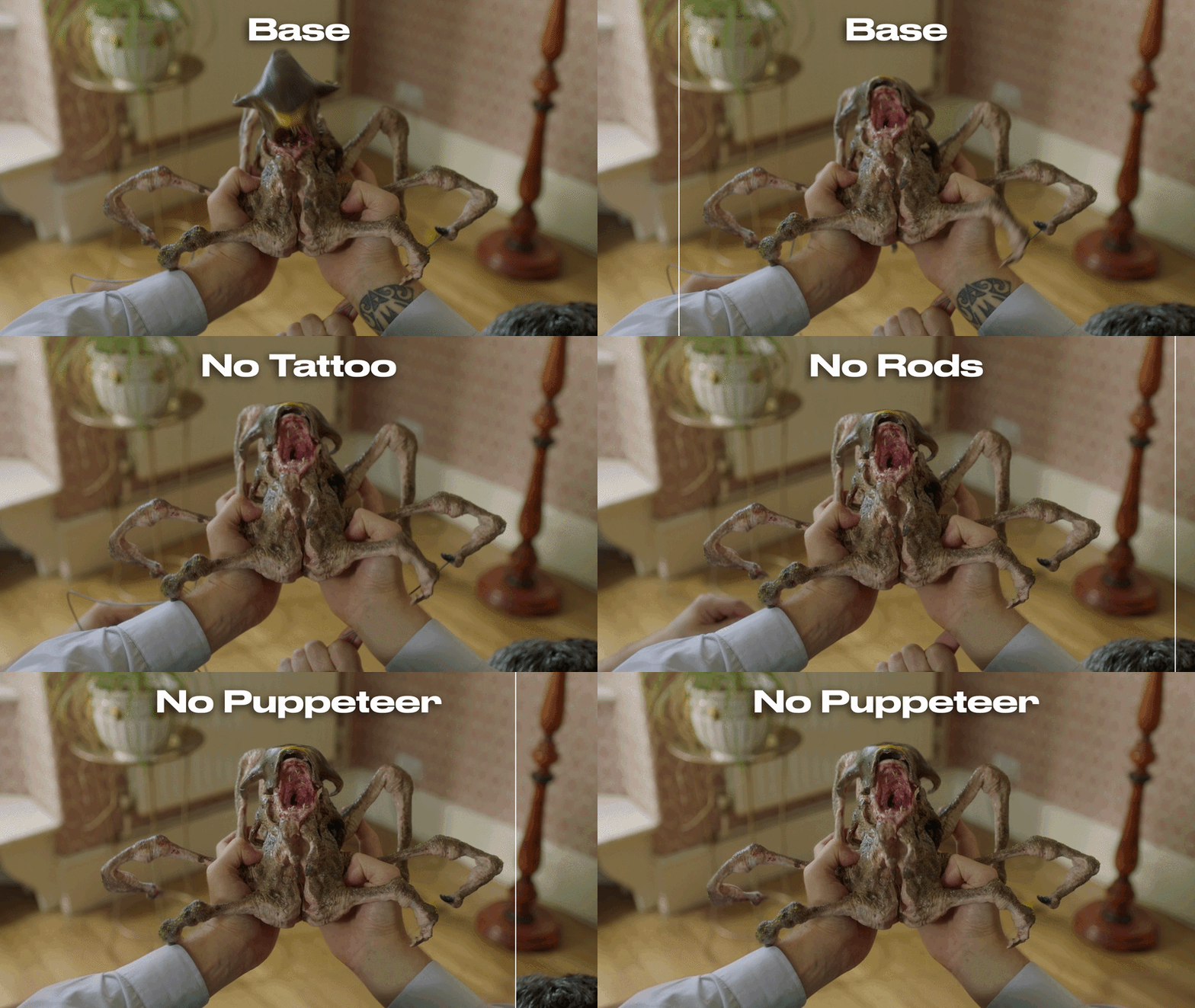
One of the main differences between on-set and post production is that on set you need everything to work perfectly, in unison, at the same time. In post production you split everything into manageable chunks. Here instead of trying to remove everything at once, we paint out the tattoo first, then the puppet wires, then the puppeteers’ hands, then his head. Clean, controllable processes are always the key
Empty space, drag to resize
1: How do you think AI is going to help you with this shot?
This is an obvious question, but still important. VFX has suffered for decades from creatives assuming “the computer does the work”, and AI faces the same fate. What exactly do you want to use AI for, and why do you think it’s better than doing that effect in camera or using traditional VFX?
2: Have you tested whether that will work?
Hah! Not such an obvious question. From the greenest newbie to the most seasoned professional, forgetting to actually run a test is one of the most common, painful mistakes you could make. I’ve made it 34,395 times, but I’ll be damned if that number is going to climb even one digit higher.
This helps avoid the “magic trap”, i.e assuming technology has more power than it does. It’s not magic. It’s tech - often designed and made by people who aren’t the ones using it. Make sure your idea works before going all-in.
3: What can you do to make an AI workflow more likely to work?
If AI isn’t magic (it’s not), then it follows rules, and patterns. If you understand those then you can leverage them to your advantage. In this week’s live session, we looked at the pros and cons of using point selection vs prompts to generate a mask.
In one of our examples, we had a wire controlled puppet, with the metal wires coming in and out of shot, and spoke about how having all the wires (and the puppeteer) visible on the first or last frame would help the AI identify exactly what was wire/puppeteer, and what wasn’t, and therefore make masking/removing it easier.
As with VFX, a few minutes of getting the right reference on set can save a tonne of work later on
Empty space, drag to resize
1: What resolution do you need to work at for the end result
If your end result is an extreme close up of a human eye turning into a werewolf eye, and your client is Disney, the answer to this question is “probably very high”. But if you’re inpainting a person out of the background of a shot, and you don’t have tight technical specifications from your client, the answer might be “eh, whatever works”. And whatever works might be low. AI is computationally expensive - work at the lowest resolution that you possible can
2: What aspect ratio do you need to work at for the models you’re using
It’s weird but currently unavoidable. Different AI models need resolutions/aspect ratios that are divisible by 8/16/32 (depending on the model). We have safe guards in our templates, but my recommendation is that you add the minimum amount of pixels necessary depending on the aspect ratio you’re using.
So 1920x1080 would become 1920x1088 if working with Wan (which requires divisibility by 32) and you’d do that change in Resolve, essentially adding 8 pixels of black to the height, and you’d shave that black off when going back to your edit.
If you were paying attention to the previous point, you’d hope to at least halve that before going into ComfyUI, to reduce computation cost.
3: What area of the shot do you need to edit (temporally and spatially)
In the live workshop, we looked at a pan down to a busy street, and considered how we would empty that street with inpainting. At least one third of the shot was just looking at the sky and therefore needed nothing removing. Don’t you dare export that to Runcomfy. Just shave it off and bolt it back on later (that’s the temporal edit).
We also realised that the cars and pedestrians that needed removing only occupied the bottom fifth of the shot. So then crop out everything except for that so that you’re submitting just the thin slice necessary to AI.
You’ve saved yourself a bunch of waiting time and computing expense, and you can just tie everything together at the end.
Empty space, drag to resize
Whether it’s a professional pipeline or you winging your first ever shot, “non destructive” should be your mantra. Simple examples would be saving increments of your work instead of saving over the same file, or working in layers when you’re image editing. When it comes to working with AI, that’s technology that has destruction built into its very digital essence
(the idea that people give it access to their computer, never mind national infrastructure is mind boggling to me!).
When you feed it an image or a video, even using our fancy templates, you should expect that every single pixel is going to get changed. How do you make that non-destructive? Well, you can’t. But you can strip back the destruction once it’s happened.
Empty space, drag to resize
Empty space, drag to resize
Empty space, drag to resize
Your final export from an AI edited shot should be:
1. Export the bare minimum necessary to edit into ComfyUI
2. Do your AI work and have a cup of coffee
3. Export the edited video itself and the mask of the intentionally edited area
4. In compositing, layer your AI over your original shot, and use the mask to ensure that only the parts that you wanted to change are AI, and the rest are from your original plate
All of that might sound fussy, but I think it’s what you should expect from working with AI. It’s not going to make you a world class artist at the click of button, but it should significantly reduce the amount of buttons that you need to click to make world class art
Empty space, drag to resize
Empty space, drag to resize
Watch the live workshop here (for those of you who were there - we’ve recorded an extra bit at the end that you should check out!)
To learn how and why we’ve updated our Inpainting Template, and how to use it, check out the “Advanced Inpainting Template” video here
Empty space, drag to resize